Theming & Branding
Theming & Branding
Customize the look and feel of your forms to match your brand. BuoyForms includes 8 built-in theme presets and a full theme editor.
Theme Editor
-
1
Open a form in the builder
Navigate to Forms in the sidebar and click the form you want to theme. ::
-
2
Click Theme in the top bar
The Theme button opens the theme editor panel alongside a live preview of your form. ::
-
3
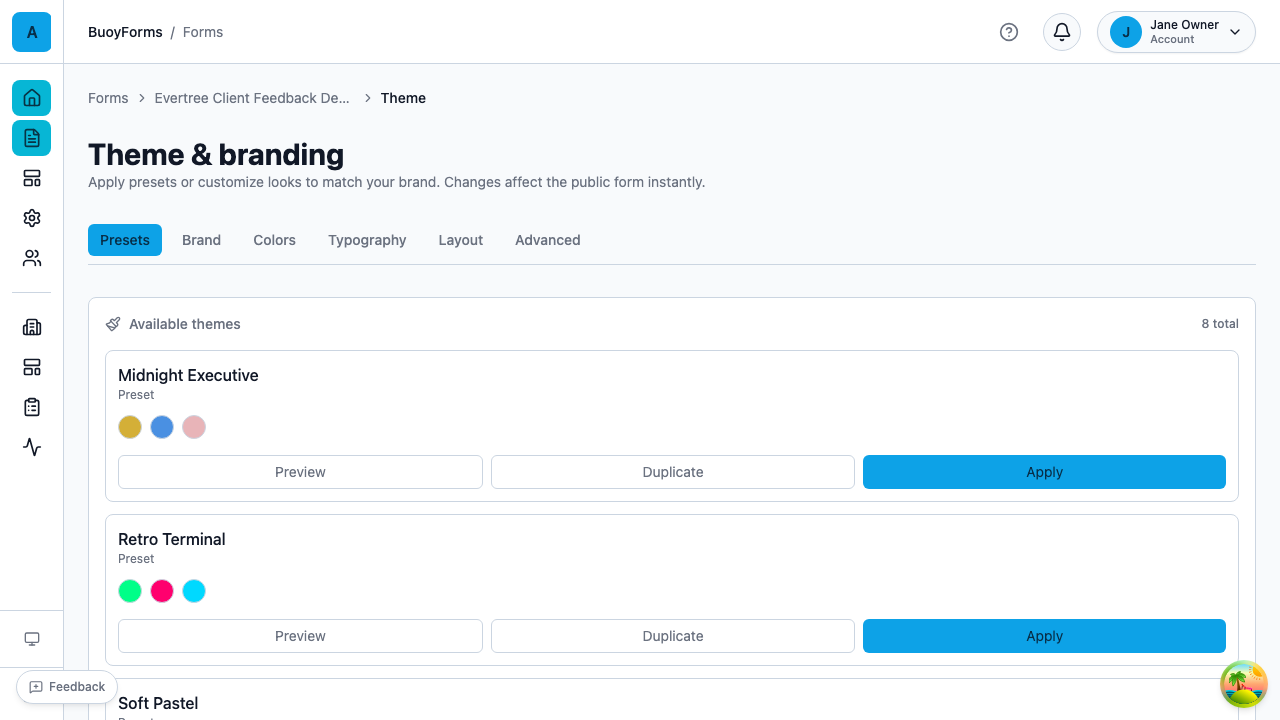
Customize and preview
Adjust colors, fonts, and layout settings. Every change is reflected instantly in the live preview. ::
Color Settings
| Setting | What it controls |
|---|---|
| Primary Color | Buttons, active states, focus rings |
| Background Color | Form page background |
| Card Background | Form card surface color |
| Text Color | Primary text |
| Muted Text Color | Descriptions, placeholders |
| Border Color | Input borders, dividers |
Typography
- Display Font — headings and form title
- Body Font — field labels, descriptions, body text
- Font Size — base font size for the form
Layout
- Border Radius — corner roundness for inputs and cards
- Card Shadow — elevation/depth of the form card
- Spacing — padding and gaps between elements
Theme Presets
Start from a pre-designed theme and customize from there:
| Preset | Description |
|---|---|
| Standard | Clean, professional default |
| Minimal | Stripped-down, no shadows |
| Rounded | Soft, rounded corners |
| Sharp | Angular, no border radius |
| Dark | Dark background, light text |
| Elegant | Serif fonts, refined styling |
| Colorful | Vibrant accent colors |
| Branded Dark | Custom branded dark theme (example of client branding) |
Custom Themes
Create reusable themes for your organization:
-
1
Customize a theme in the editor
Adjust colors, fonts, and layout until the form looks the way you want. ::
-
2
Click Save as Theme
The Save as Theme button appears at the bottom of the theme editor panel. ::
-
3
Name your theme
Give it a descriptive name like "Brand Primary" or "Event Landing Page". ::
-
4
Use it across forms
The theme is saved to your organization and available for all forms created by any team member. ::
Applying a Theme
-
1
Open the theme editor and click Presets
The presets drawer shows your saved themes and the built-in presets. ::
-
2
Select a theme
Click any theme to apply it. The form updates immediately in the live preview. ::
Branding Tips
Use the same colors and fonts across all your forms. Save a custom theme so every team member starts from the same base. ::
Ensure text is readable against your background colors. The theme editor's contrast checker helps you stay within accessible ranges. ::
Add your logo to the form header. This is configurable in Form Settings under the Branding section. ::
The theme editor warns you if color combinations don't meet WCAG contrast standards. Always check the contrast score before publishing. ::
Theme Accessibility
The theme editor includes a contrast score panel that checks:
| Check | WCAG AA Requirement |
|---|---|
| Text against background | 4.5:1 ratio |
| Large text against background | 3:1 ratio |
| Interactive elements visibility | Distinguishable from surrounding content |
Advanced: CSS custom properties
Under the hood, BuoyForms themes are powered by CSS custom properties. If you're on an Enterprise plan, you can inject custom CSS to fine-tune styles beyond what the theme editor exposes. Contact support for details on the custom CSS API.