Team Management
Team Management
Invite team members, assign roles, and control access to your organization's forms.
Inviting Team Members
-
1
Go to Settings, then Team
Click Settings > Team in the sidebar to open the team management page. ::
-
2
Click Invite Member
The invite dialog opens with fields for email and role. ::
-
3
Enter the person's email address
Type the email address of the person you want to invite. ::
-
4
Select a role
Choose from Owner, Admin, Contributor, or Member. See the Roles and Permissions section below for details. ::
-
5
Click Send Invite
The invitee receives an email with a link to join your organization. ::
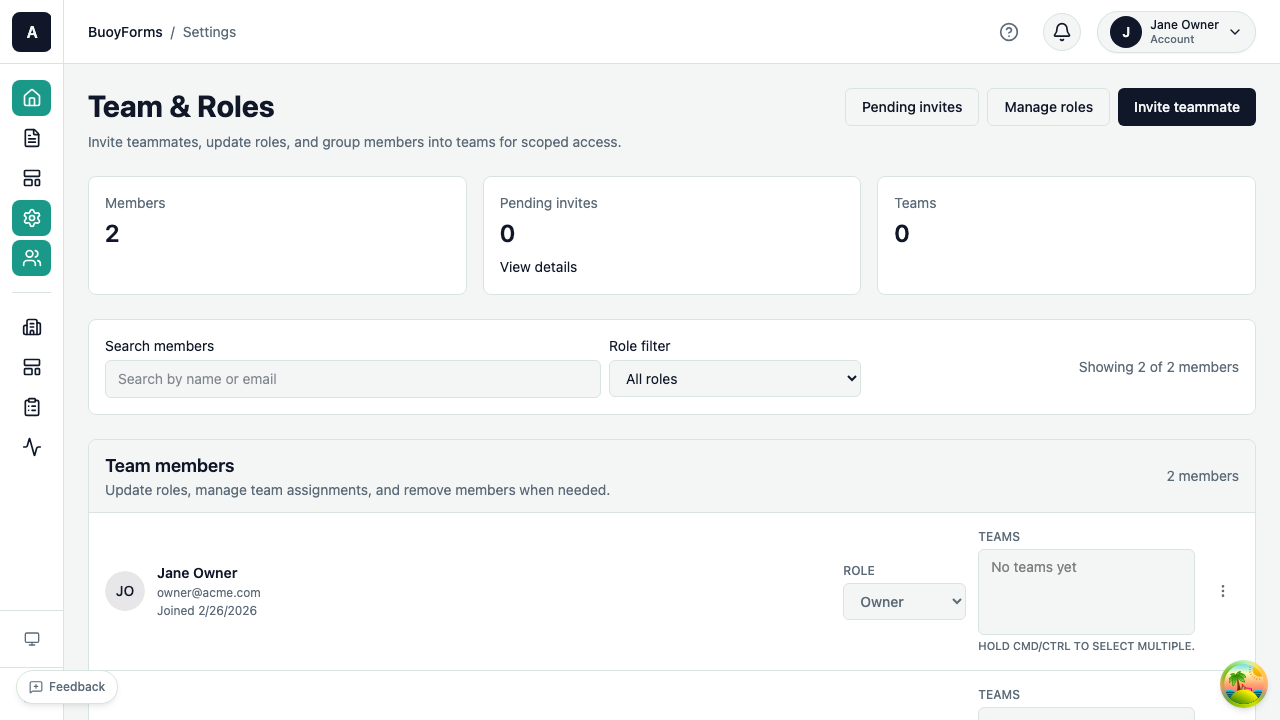
Invite Management
| Action | Description |
|---|---|
| Pending invites | Show in the Team page until accepted |
| Resend | Resend an invite if it expired (invites expire after 24 hours) |
| Revoke | Cancel an invite before it's accepted |
Roles and Permissions
| Permission | Owner | Admin | Contributor | Member |
|---|---|---|---|---|
| Manage billing | Yes | No | No | No |
| Manage team | Yes | Yes | No | No |
| Create forms | Yes | Yes | Yes | No |
| Edit forms | Yes | Yes | Yes | No |
| View submissions | Yes | Yes | Yes | Yes |
| Delete forms | Yes | Yes | No | No |
| Manage integrations | Yes | Yes | No | No |
| View analytics | Yes | Yes | Yes | Yes |
Full control over the organization. Can manage billing, team, and all settings. Every organization has at least one owner. ::
Can manage team members and all forms. Cannot access billing or transfer ownership. Best for team leads who need full operational control. ::
Can create and edit forms, view submissions and analytics. Cannot manage team or delete forms. Ideal for form builders and content creators. ::
View-only access to submissions and analytics. Cannot create or edit forms. Use this for stakeholders who need to see results but shouldn't modify forms. ::
Changing Roles
-
1
Go to Settings, then Team
Open the team management page. ::
-
2
Find the team member
Locate the person whose role you want to change in the members list. ::
-
3
Click their current role
A dropdown appears with the available roles. ::
-
4
Select the new role
Choose the new role from the dropdown. The change takes effect immediately. ::
Removing Team Members
-
1
Go to Settings, then Team
Open the team management page. ::
-
2
Find the team member
Locate the person you want to remove. ::
-
3
Click Remove
A confirmation dialog appears. ::
-
4
Confirm the removal
Click confirm to remove the member from your organization. ::
Plan Limits
| Plan | Team Members |
|---|---|
| Free | 1 (owner only) |
| Starter | Up to 5 |
| Pro | Up to 25 |
| Enterprise | Unlimited |
Advanced: Transferring ownership
To transfer organization ownership to another team member, go to Settings > Team, click the member you want to promote, and select Transfer Ownership. This action requires you to confirm with your password. The previous owner is downgraded to Admin. Only the current Owner can perform this action.