Managing Submissions
Managing Submissions
Every form submission is stored, searchable, and exportable. This guide covers viewing, filtering, exporting, and managing response data.
Viewing Submissions
-
1
Go to Forms in the sidebar
Click Forms to see all your organization's forms. ::
-
2
Click your form name
Open the form you want to review submissions for. ::
-
3
Click Submissions in the form navigation
The submissions table loads with the most recent responses at the top. ::
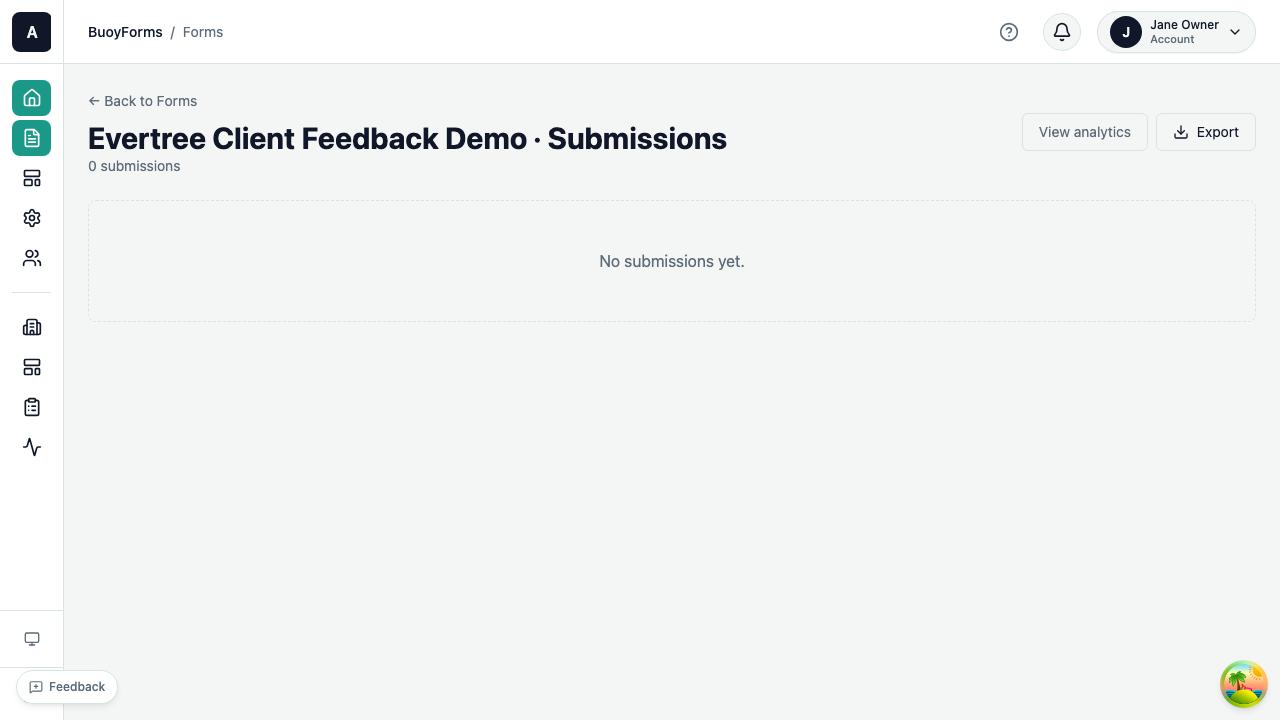
The submissions table shows:
| Column | Description |
|---|---|
| Date | When the response was submitted |
| Status | Completed or in-progress |
| Key fields | The first few field values as preview columns |
| Actions | View details, delete |
Submission Detail View
Click any row to see the full response:
- Every field label and the respondent's answer
- Submission metadata (timestamp, IP, user agent, page flow)
- File attachments (if the form has file upload fields)
Filtering and Searching
Use filters above the table to narrow results:
| Filter | Description |
|---|---|
| Date range | Submissions within a specific time period |
| Status | Completed submissions only, or include in-progress |
| Field values | Filter by specific answers (e.g., NPS score > 8) |
| Search | Full-text search across email, name, and answer text |
Sorting
Click any column header to sort:
- Date — newest first or oldest first
- Field columns — alphabetical or numeric sort
Exporting Data
Quick Export
-
1
Click Export above the submissions table
The export dialog opens with format and field options. ::
-
2
Choose format: CSV, Excel, or JSON
Pick the format that works best for your workflow. ::
-
3
Select which fields to include
Check or uncheck fields to control what appears in the export file. ::
-
4
Click Download
The file downloads to your computer immediately. ::
Best for spreadsheet tools like Excel or Google Sheets. Compatible with virtually any data tool. ::
Native .xlsx format with proper column types. Ideal if you're working directly in Microsoft Excel.
::
Structured data format for developers. Useful for importing into databases or custom analytics pipelines. ::
Submission Actions
Viewing
Click a submission row to see the full response detail.
Deleting
- Single submission: Click the row menu, then Delete
- Bulk delete: Apply filters, then click Delete filtered submissions (requires Admin role)
Redacting
For privacy compliance (GDPR, CCPA):
- Redact replaces answer text with
[REDACTED]while preserving the submission record - Audit log tracks who redacted and when
- Use for removing personal data while keeping aggregate statistics
Incomplete Sessions
Track respondents who started your form but didn't finish:
-
1
Go to Submissions
Open the submissions view for your form. ::
-
2
Click the Incomplete tab
Switch from completed submissions to the incomplete sessions view. ::
-
3
Analyze drop-off patterns
See which page or field respondents stopped at and identify friction points. ::
Incomplete session data helps you:
- Find confusing or friction-heavy fields
- Optimize form length and page structure
- Understand where respondents lose interest
Webhooks
Send submission data to external systems in real time.
-
1
Go to Settings or Integrations
Open the form's Settings or Integrations section. ::
-
2
Click Add Webhook
Start configuring a new webhook endpoint. ::
-
3
Enter the destination URL
Provide the URL where submission data should be sent. ::
-
4
Select events
Choose which events trigger the webhook:
submission.created,submission.updated. :: -
5
Click Save
The webhook is active immediately for new submissions. ::
Each webhook POST includes the full submission payload as JSON. Failed deliveries retry with exponential backoff (up to 5 attempts).
Advanced: Webhook payload structure
The webhook payload includes the submission ID, form ID, all field values, submission metadata (timestamp, IP, user agent), and the event type. The Content-Type header is set to application/json. You can verify webhook authenticity using the X-BuoyForms-Signature header included with each delivery.
See Integrations for connecting to Salesforce, Zapier, Google Sheets, and more.